What Are VRM Models (And Where to Find Them)
If you’ve spent any time around VTubers, virtual companions, or avatar-based apps, you’ve probably seen the term “VRM” thrown around. But most people outside of the VTubing community don’t actually know what it means. So let’s fix that.
VRM in 30 seconds
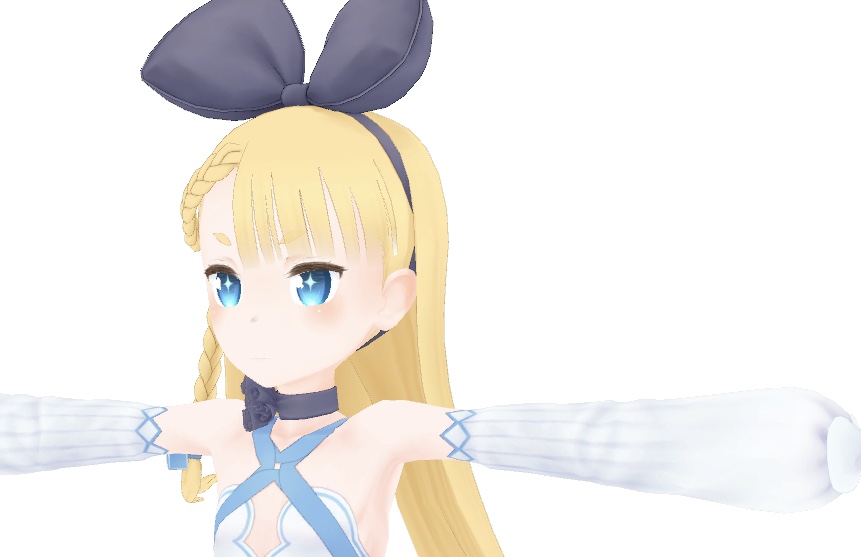
VRM is an open file format for 3D humanoid avatars. Think of it like JPEG for photos or MP4 for video, but for 3D characters. One file contains everything: the 3D model, textures, facial expressions, physics for hair and clothing, eye tracking behavior, and even licensing metadata. You make a character once, and it works in any app that supports VRM.
The format was created in Japan in 2018 by the VRM Consortium, a group of 13+ companies including pixiv, Dwango, and Unity Technologies Japan. It came out of the VTuber boom and solved a real problem: before VRM, every platform had its own incompatible avatar format. You’d make a character for one app and have to completely redo it for another.
As of late 2024, the Khronos Group (the people behind OpenGL, Vulkan, and glTF) partnered with the VRM Consortium to push VRM toward international standardization. It’s becoming the real deal.
What’s actually inside a VRM file
Under the hood, a VRM file is just a glTF 2.0 binary (.glb) with extra metadata. If you renamed character.vrm to character.glb, any 3D viewer could open it. But the VRM extensions are what make it useful for avatars specifically:
- Mesh and textures for the character’s appearance
- A humanoid skeleton with standardized bone names (hips, spine, chest, head, arms, etc.)
- Expressions for emotions and lip sync (happy, sad, angry, plus mouth shapes for speech)
- Spring bones that handle physics for hair, clothing, tails, and accessories
- Eye gaze settings that control how the eyes track a target
- MToon materials for that anime-style toon shading most VRM models use
- License metadata baked right into the file (more on this later)
The expression system is particularly cool. VRM defines standard expressions like happy, angry, sad, relaxed, and surprised, plus lip sync phonemes (aa, ih, ou, ee, oh) mapped to Japanese vowels. That’s why apps like Aikeya can do automatic lip sync with any VRM model without any extra setup.
Where to find free VRM models
VRoid Hub
VRoid Hub is the main platform for sharing VRM models. It’s run by pixiv (the same company behind the popular illustration platform). Creators upload their characters and set permissions for how they can be used.
The catch: a lot of models on VRoid Hub are set to view-only. Creators can choose whether their model is downloadable or just for display. So you’ll browse through a ton of cool characters and find that many aren’t available for download. The ones that are downloadable will say so clearly on the model page.
BOOTH
BOOTH is pixiv’s creator marketplace and it’s honestly the largest source of anime-style 3D avatars out there. Many creators list models for free (0 yen), while others charge anywhere from a few hundred to a few thousand yen. The site is primarily in Japanese, but browser translation handles it fine.
Pro tip: BOOTHPLORER is a third-party tool that makes browsing BOOTH’s avatar catalog way easier with better filtering and search. Everything links back to the original shop listing.
Other sources
- VIVERSE Avatar Creator from HTC lets you create and export VRM files right in your browser
- Sketchfab has some VRM-compatible models from various creators
- open-source-avatars is a curated GitHub repo of free VRM avatars
Making your own
VRoid Studio (the easy way)
VRoid Studio is free, runs on Windows, macOS, and iPad, and requires zero 3D modeling experience. It uses sliders and preset parts to let you build a character visually. You can customize body shape, facial features, draw hairstyles freehand, and pick outfits. When you’re done, export directly to VRM.
The tradeoff: all VRoid models share the same base mesh, so they tend to have a recognizable “VRoid look.” If you’ve seen enough VTubers you can usually spot a VRoid model. It’s not a bad look at all, but it’s a specific aesthetic. For a lot of people that’s totally fine.
Blender (the hard way)
If you want full creative control over every polygon, Blender with the VRM Add-on can create and export VRM files. You get unlimited freedom with any art style, any level of detail.
The tradeoff: you need to actually know 3D modeling. You’re dealing with rigging, bone assignments, material configuration, blend shape setup, and spring bone physics. It’s a real pipeline. But if you already know Blender, the VRM add-on makes the export process straightforward.
The middle ground
CharacterStudio is an open-source, web-based VRM creator that hits somewhere between VRoid’s simplicity and Blender’s power. Worth checking out if you want more control than VRoid without going full 3D artist.
The licensing thing
One of VRM’s smartest features is that license information is embedded directly in the file. Not in a separate README that gets lost. Not in a text file nobody reads. It’s in the VRM metadata and apps are expected to read and respect it.
Creators can specify:
- Who can use it as an avatar (only the author, people with permission, or everyone)
- Commercial use (personal only, personal profit allowed, or full commercial)
- Modification (prohibited, allowed but can’t redistribute, or fully open)
- Content restrictions (violence, sexual content, political/religious use, etc.)
- Credit requirements (required or optional)
This matters a lot in the VTubing community because avatars often represent specific personas. A creator might be fine with you using their model casually but not want it showing up in someone else’s commercial stream. The embedded licensing makes those boundaries clear.
Always check the permissions before using someone’s model. Most VRM-compatible apps will surface these permissions to you.
VRM 0.x vs 1.0
If you see models labeled as VRM 0.x or VRM 1.0, here’s the short version: VRM 1.0 came out in September 2022 and is the current standard. It’s modular, has better expression controls, and adds features like node constraints. VRM 0.x is deprecated but still widely used since a lot of existing models were made with it.
Most apps support both versions. VRoid Studio lets you export in either format. If you’re making a new model, go with 1.0. If you’re downloading existing models, don’t stress about the version since your app will probably handle it either way.
Using VRM with Aikeya
This is exactly what Aikeya was built for. Drop in any VRM file and you’ve got a 3D companion with automatic lip sync, facial expressions, and spring bone physics. The model renders in your browser or desktop app with MToon shading, and expressions are driven by the AI’s responses.
You can grab a free model from VRoid Hub, make one in VRoid Studio, or commission something custom. The VRM standard means it all just works without any conversion or setup. Load the file, connect your LLM, and your companion is ready to go.
The open format is what makes this possible. No proprietary avatar system, no vendor lock-in. Your character is a file on your hard drive that you own completely.